Tutorial: how to create an ad on Kerbsides
INTRODUCTION
I guess you're new around here so first of all, thanks for joinning us!
The main idea of kerbsides.com.au is share and recycling. Offer a second life to things that otherwise will end up forgiven and increasing the waste volume.
We created the site especially for the Kerbside Collections or Verge Collections. It's a very important service that Local Governments are seeking to address and reducing the waste not only contribute to reduce someone else needs but helps improving the economy as a service by recovering objects wich will end up protecting our environment.
Even when we called them KERBS allow the site (it was the main idea while developing the site) we do actually support more Ad Types: Kerb, Swap, Freebie, Wanted, Garage Sale, Missings and Markets.
DEFINITIONS
Kerb: ad type for kerbside or verge collection items left outside of a property.
Freebie: for something that you will hold and give for FREE to someone.
Swap: when you want to change or trade for other thing/s.
Garage Sale: if you want to sell a few items on one spot.
Missing: for something you have lost.
Markets: to advertise and spread local markets information.
Wanted: to find something you need.
MANUAL FOR SHARING A KERB
The short description would be:
1 - Access the site kerbsides.com.au or app kerbsides.app
2 - Log In with your email/password or create an account (you'll need to verify your email address)
3 - Go to the Share page/screen > www.kerbsides.com.au/share.php
4 - Help yourself with the autocomplete function when you start typing the ad address.
5 - You'll see how some information came up automatically to the "status" textarea. Add some tags or a description to improve it.
6 - Choose a type of ad.
7 - Select an image to upload.
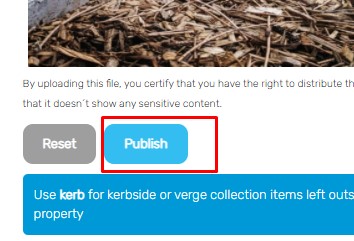
8 - Press the "Publich button"
The long description with screenshots:
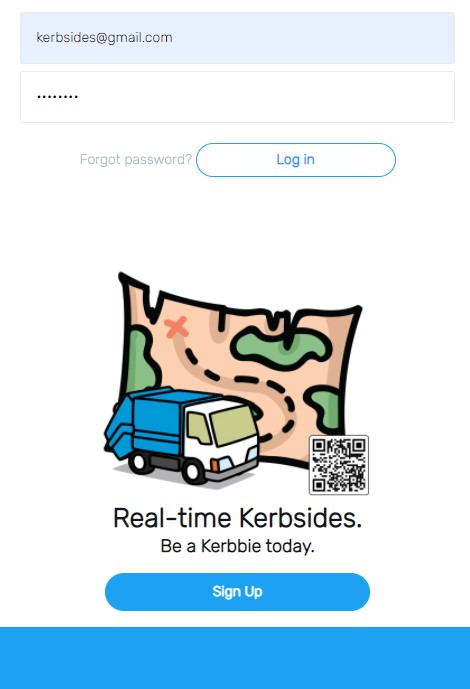
1 - Log in at kerbsides.com.au or through the app installed on your mobile
2 - The site will take you automatically to the "Road" (your feed) where you can see a timeline with your ads and the ads from people you followed.
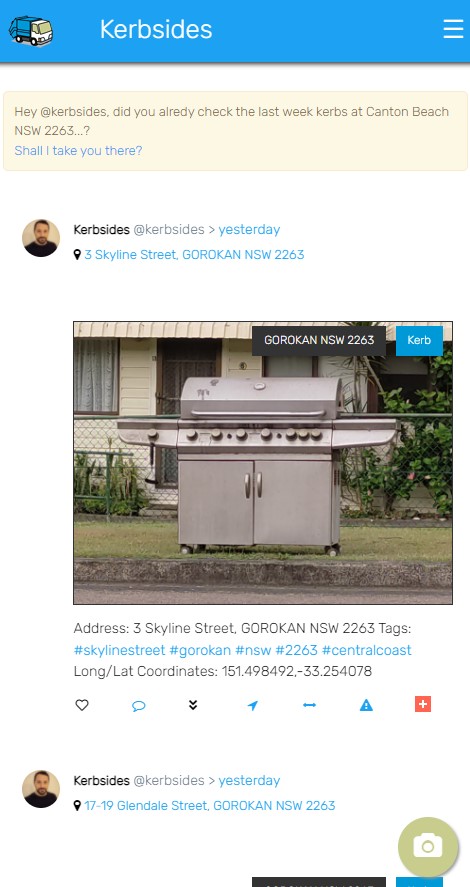
3 - Press the camera icon on the bottom corner of the app:
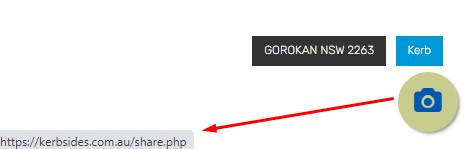
Or press the "share" button from the menu:

4 - The site will ask you to access your device location: allow it please.
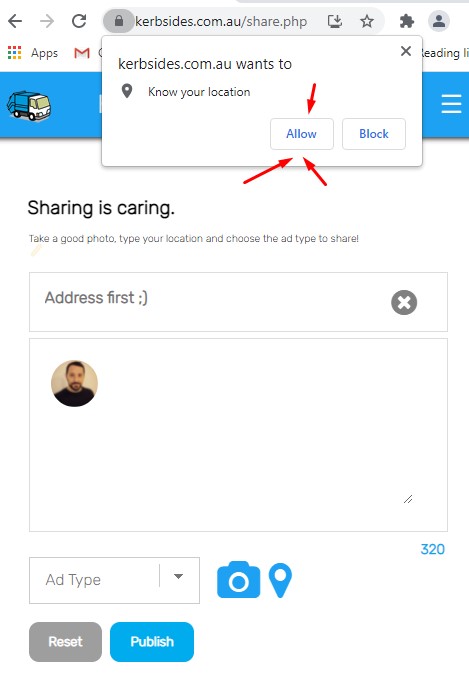
Most of the features and addons on the site work location based, to enable a good flow with the functions this is a must, otherwise you won't enjoy the trip as much!
5 - If everything is fine an you're on your phone, the location should be accurate on the field on top.
If you are using a computer, the geolocation function will position you where your ISP served you IP address and that can be, far away from where you're sitting with your laptop/desktop.

If you want to correct the address just press the cross provided.
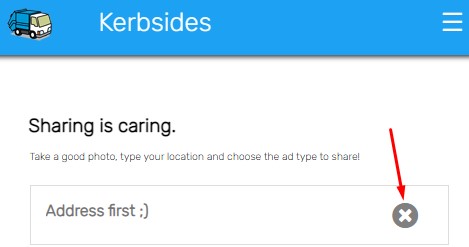
Once you start typing the number of the street where the kerb is located, our address widget (provided by AddressFinder) will suggest you some real address. This is called address normalization, and is a proccess that ensure that the address you're typing really exists. By using this widget all of us will save some time validating the ads!
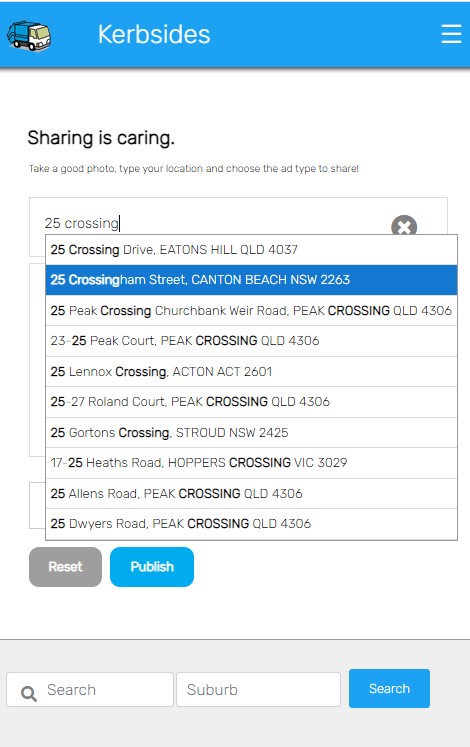
Select the addres more convenient:

6 - Upon selection, another widget called Alertify will show up to confirm your selection:

At this point we've locked the field "address" and any change on that field will require you to reset the form.
We do this to improve the experience of the user: automatic hashtags and GPS coordinates has been added to you ad so if you're in a rush you don't really have to do nothing else on the "status" textearea.
7 - Feel free to ad more tags or complete a description for the ad.

8 - Select the Ad Type.
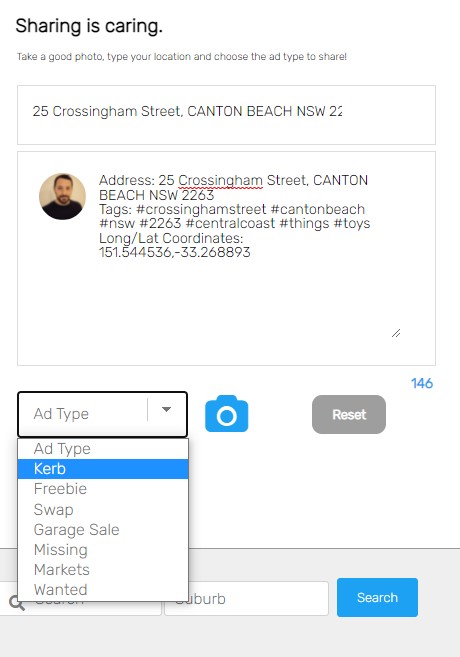
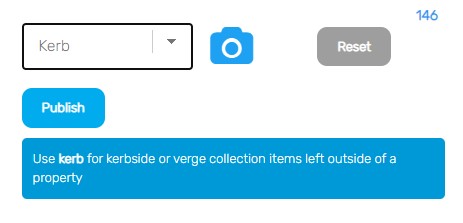
9 - Once you've selected the ad type, a small divider will come up with some information about the ad type choosen. That's more for rookies at this stage ;)
10 - Press the image icon to open the upload dialog.

On a mobile device, the capture/camera will come up besides your "Gallery" option select. On a computer, just the HD menu to navigate and select one picture.

Once you've selected your image a friendly alert will come up again to let you know. I just love notifications ha ha ha.

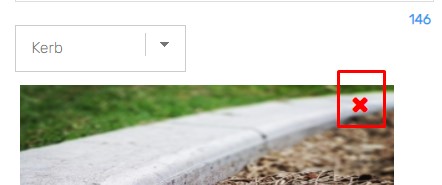
Don't worry, if you make a mistake you can erase the photo by clicking on that cute red cross at the top right corner:
11 - Ready for publishing the ad. Now it's everything about making the right decision, you're one step away of sharing!
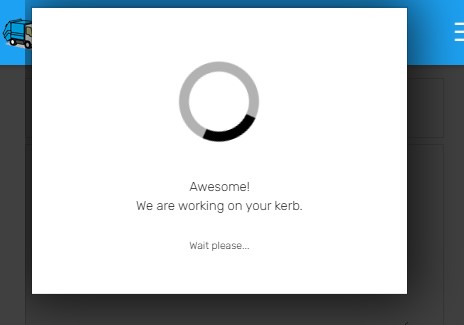
12 - I've enabled a loading screen while the picture is uploading as sometimes, the 4MB-6MB quality of our modern devices may affect the uploading speed of the server and we don't like a user waiting on a paused screen as it's confusing... so this screen helps everyone to understand that things, require time: wait till it finish :)
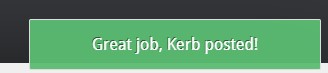
13 - If everything goes as expected you'll get one more confirmation.
14 - Not sure? You can always go to the Road (timeline/feed) to check if the ad is there:

15 - Even at this point you can erase the ad from your profile timeline:

*Cause realize how we build the main feed (ROAD): we take the kerbs/garage sales from the last week and the rest of adtypes from last month. This is because those ad types are usually volatile!
If you clicked the "Delete" cross guess what, you will get a confirmation screen:

And more notifications...

Thanks for watching.
Ready to post your first kerb? What are you waiting for?
*This tutorial images are FREE to share as the printed version and basically most of the things you will find on the site.
Just keep an eye on people's privacy and don't disturb the Community. Be kind.